
Visual Identity III: Color Scheme - Creating Color Swatch using Adobe Illustrator
This will discuss how to create Color Swatch in Adobe Illustrator.
VISUAL IDENTITY
11/24/20252 min read
Adobe Illustrator is the leading graphic design software for creating logos, infographics and other vector drawings. Adobe Illustrator has a feature called Swatches where you can find color schemes.

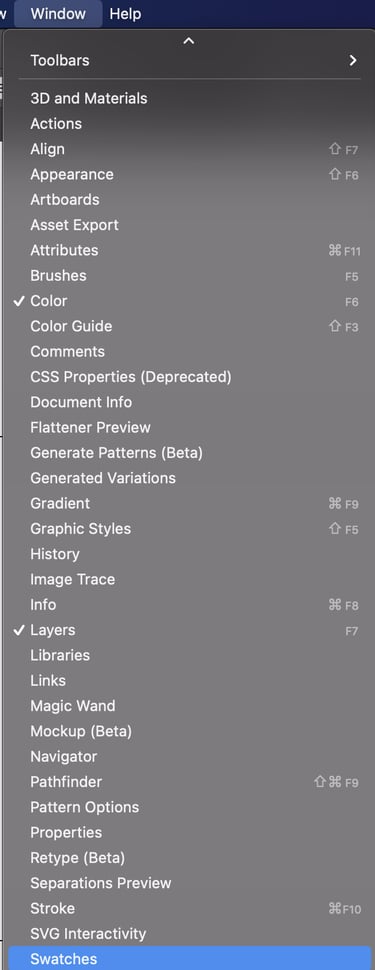
To show Swatches, go to Menu then select Swatches.
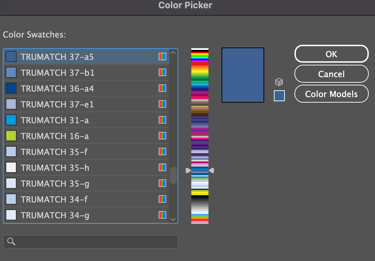
Below the Swatch panel, click on Swatch Libraries. This is where you can view predefined color schemes. There are also Color Books that are used for color accuracy for printing. I also find Color Books useful so I can easily find the shades of a particular color. One of the most popular Color Books in graphic design is Pantone. However it is excluded in the Adobe Illustrator Color Books. I used Trumatch instead.
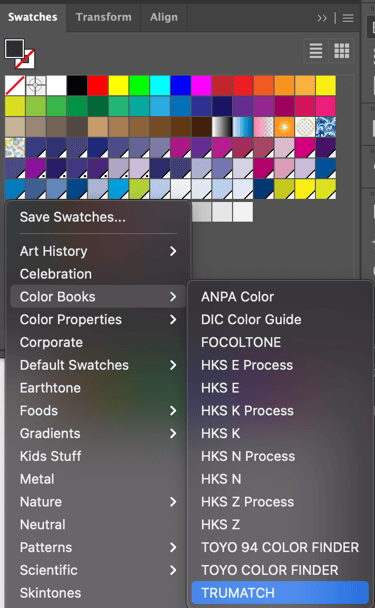
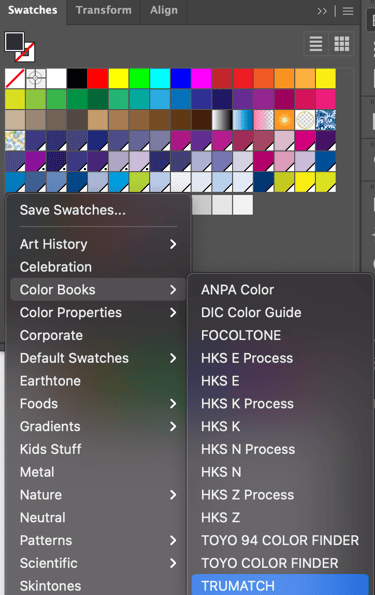


To create your Color Swatch, pick at least 5 neutral colors, 4 shades of dominant color and 1 accent color. A total of 10 colors at least. Why do you need at least 10 colors for your swatch? This is because the majority of the corporate industries use Microsoft Powerpoint for visual presentations like product portfolio, sales and reports. If you can create a swatch that will fit in the Microsoft Powerpoint theme right from the start, the better because it will lessen the task of fitting your color swatch in Microsoft Office applications. Except for the graphic designer in an organization, the rest of the workforce are non-designers but are Microsoft Office users. They will appreciate the Color Swatch easily if they can see how it works especially in Powerpoint.
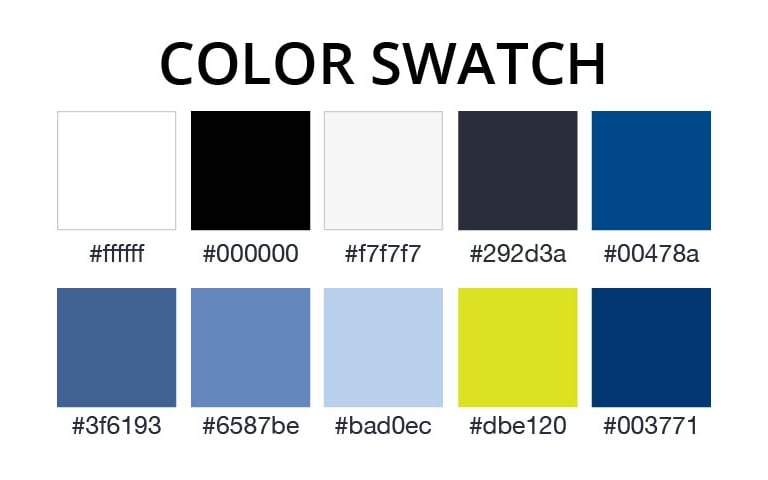
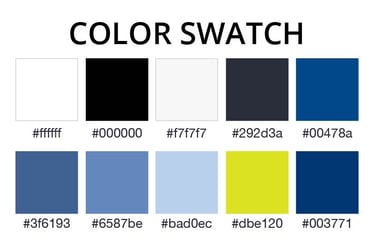
Color Value
Once you have prepared your containers, go to the Color Book and pick the colors you need. Write the labels including Hex, RGB, CYMK & Color Book value.
Hex refers to web colors that you can use for html coding.
RGB refers to the colors of light that will appear in the monitor.
CMYK is the amount of Cyan, Magenta, Yellow and Black that is used for general printing.
Color Book Value is used for high-end, large format printing.


Once you complete your 10 colors for your Color Swatch, go to Powerpoint and create the Colors. The advantage of creating swatch in Powerpoint is that it generates 5 gradients for each color.